


Powerful backup software
What if you woke up one day to find that you lost precious photos of dear ones? How about losing your business documents, research and other important data?
Shivering thoughts, with a simple solution: BACKUPS!
Choose FBackup if you're looking for a free backup software with simple features, or the commercial Backup4all for more advanced backup options.
Free Backup Software
FBackup 9.9.869 | 2024-04-15
Download FBackup (Free)
Premium Backup Software
Backup4all ProfessionalFBackup
FBackup does file backups. For Free!About FBackup
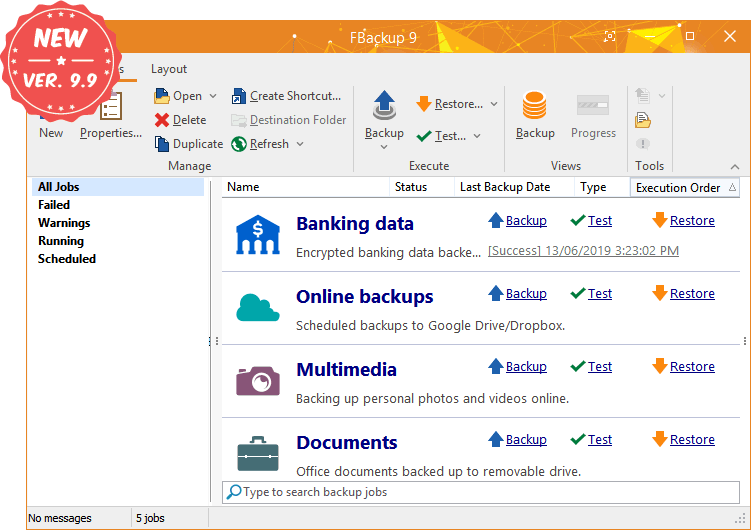
FBackup has a simple interface and guides you through the process of defining a backup job using a friendly wizard that asks you:
- Where do you want to store the backup (the destination).
- What do you want to backup (the sources).
- How do you want to run the backup (using full backup that zips the files, or mirror backup that doesn't zip them).
- When do you want to run the backup (you can schedule it to run automatically or run it manually).
Once a backup job is defined, you can run it manually by pressing the Backup button (or F6), or if you add a scheduler it will run automatically.
FBackup can easily back up sources from local drives (including USB connected drives) or online locations (Dropbox/Google Drive) to destinations such as USB/Firewire connected devices, mapped network locations or in the cloud (Dropbox/Google Drive).
It creates either standard zip files (when using "full backup"), or exact copies of the original sources without any compression (using "mirror backup"). The best thing about this freeware backup software is that it protects your data for free.
Main Features
It’s free for personal and commercial purposes
FBackup is a backup software free for both commercial and personal use. This means that you can save some money by not having to buy another backup program.
Automatic backups
You define a backup job, set it to run automatically, and forget about it. FBackup will automatically run the backup at the scheduled date, so you have the benefits not only of having your data protected, but you'll also save precious time.
Backup with standard zip compression
When using "full backup", the sources will be archived using standard zip compression. FBackup uses ZIP64 compression, which means that it can create zip files over 2GB in size. Also, you can password protect your backup zip files.
Testimonials
What our users say about FBackupTutorials
Watch videos that show FBackup in actionWe're Softland
Learn more about the company that makes FBackupAbout us
Softland is a company founded in 1999, committed to providing quality software by using innovative development solutions. We always put the needs of our customers first and that's why we value our users' feedback.
Contact us
Contact us with any questions/suggestions you might have regarding FBackup. If you are experiencing errors with FBackup, we recommend checking first if there isn't already an answer here: FAQ / User Forum
Our Products
The products we develop and maintain target two different fields: file backup (Backup4all and FBackup) and PDF creation (novaPDF and doPDF). Since 2011 we also run Soft112, a software download library.
FBackup in numbers
FBackup is continuously developed since 2006K+
Hours of Coding
K+
Lines of Code
K+
Downloads
K+